When you click shut down, nothing happens or it just takes you back to the login screen.
To fix, disable Fast Startup.
How to enable and disable fast startup on Windows 10
If you'd like to see how your PC performs without fast startup enabled, you can disable it in just a few steps:
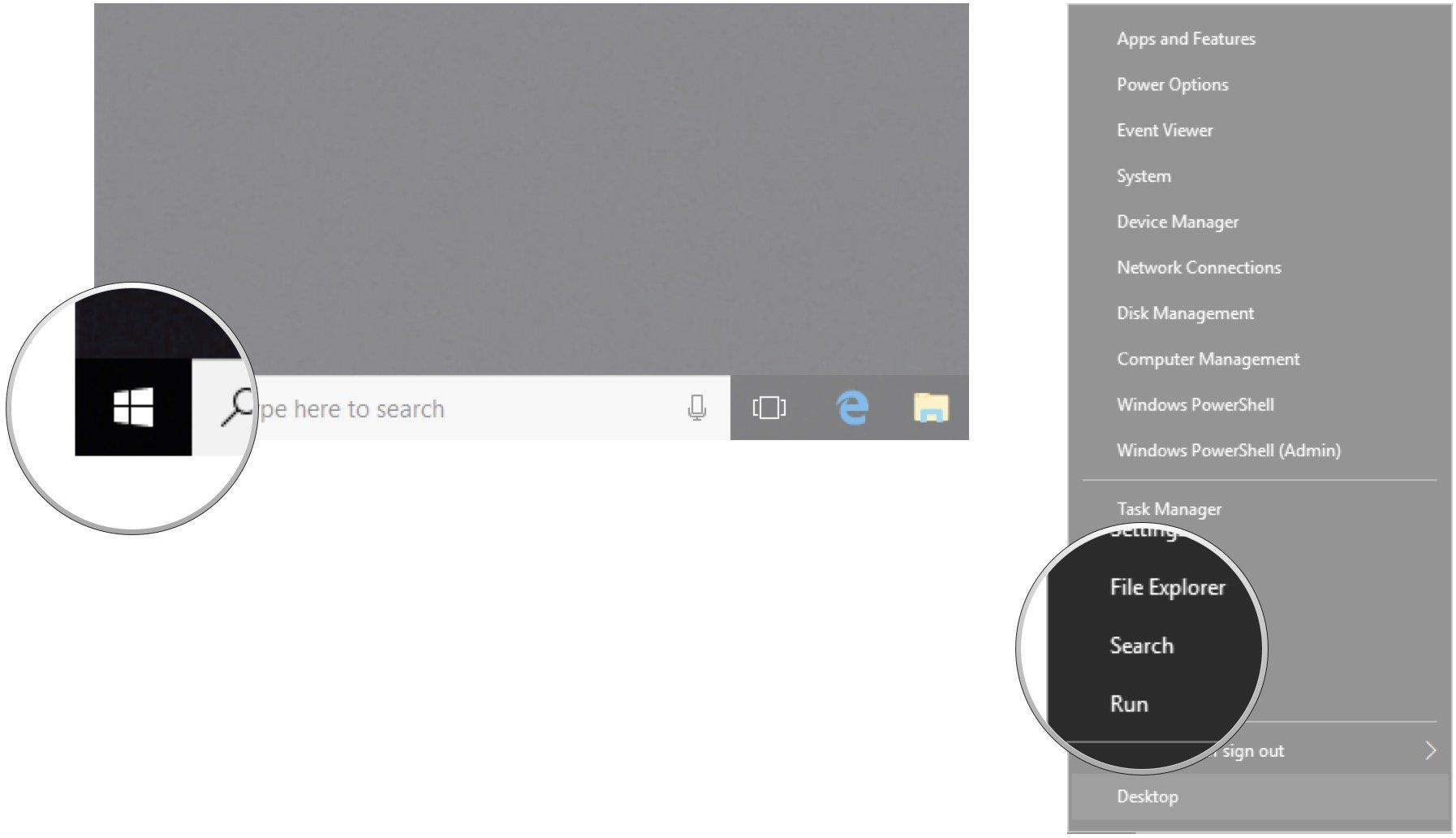
- Right-click the Start button.
- Click Search.
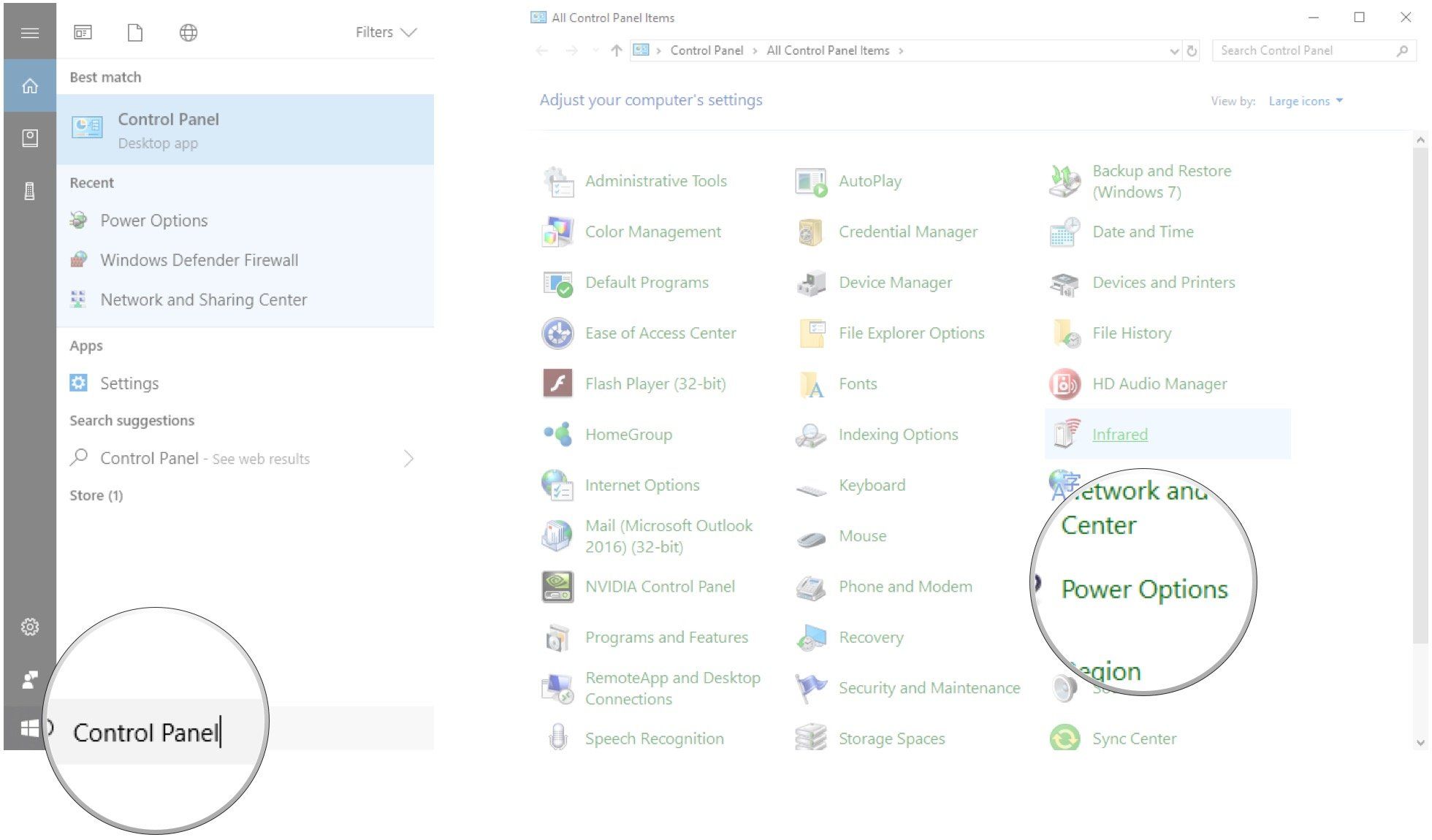
3. Type Control Panel and hit Enter on your keyboard.
4. Click Power Options.
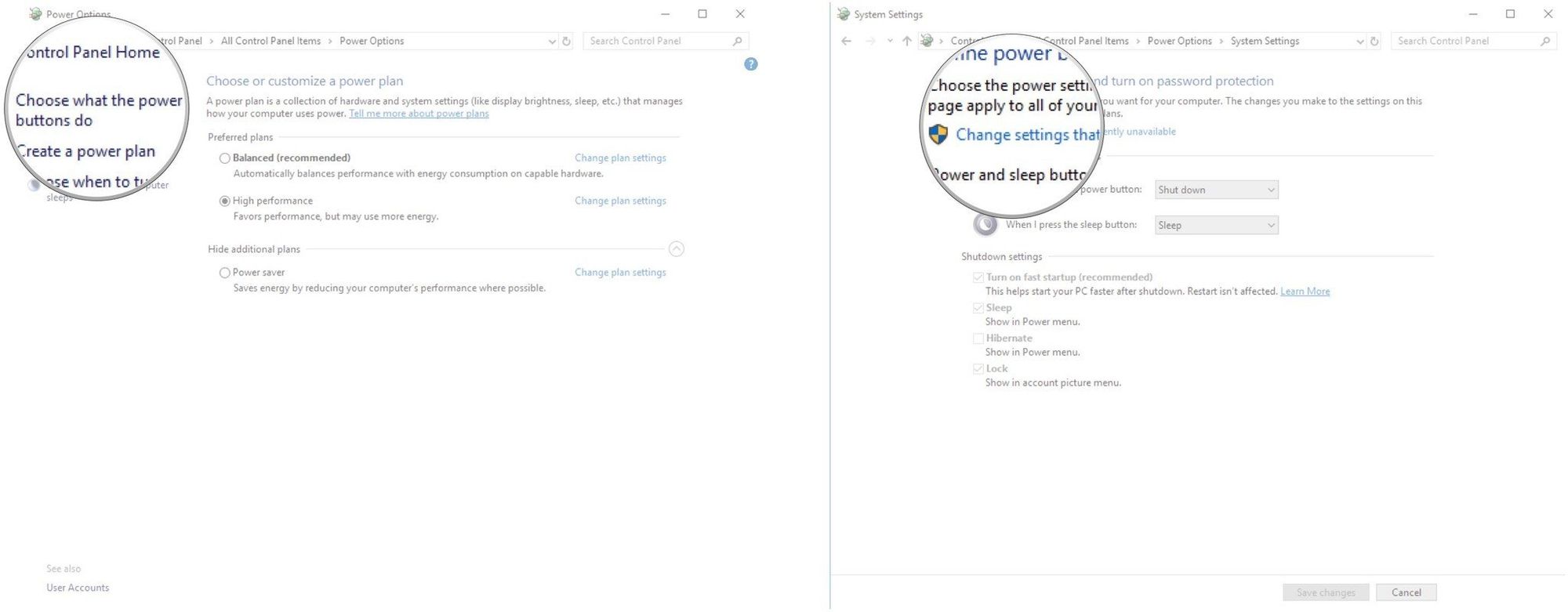
5. Click Choose what the power buttons do.
6. Click Change settings that are currently unavailable.
7. Click Turn on fast startup (recommended) so that the checkmark disappears.
8. Click Save changes.
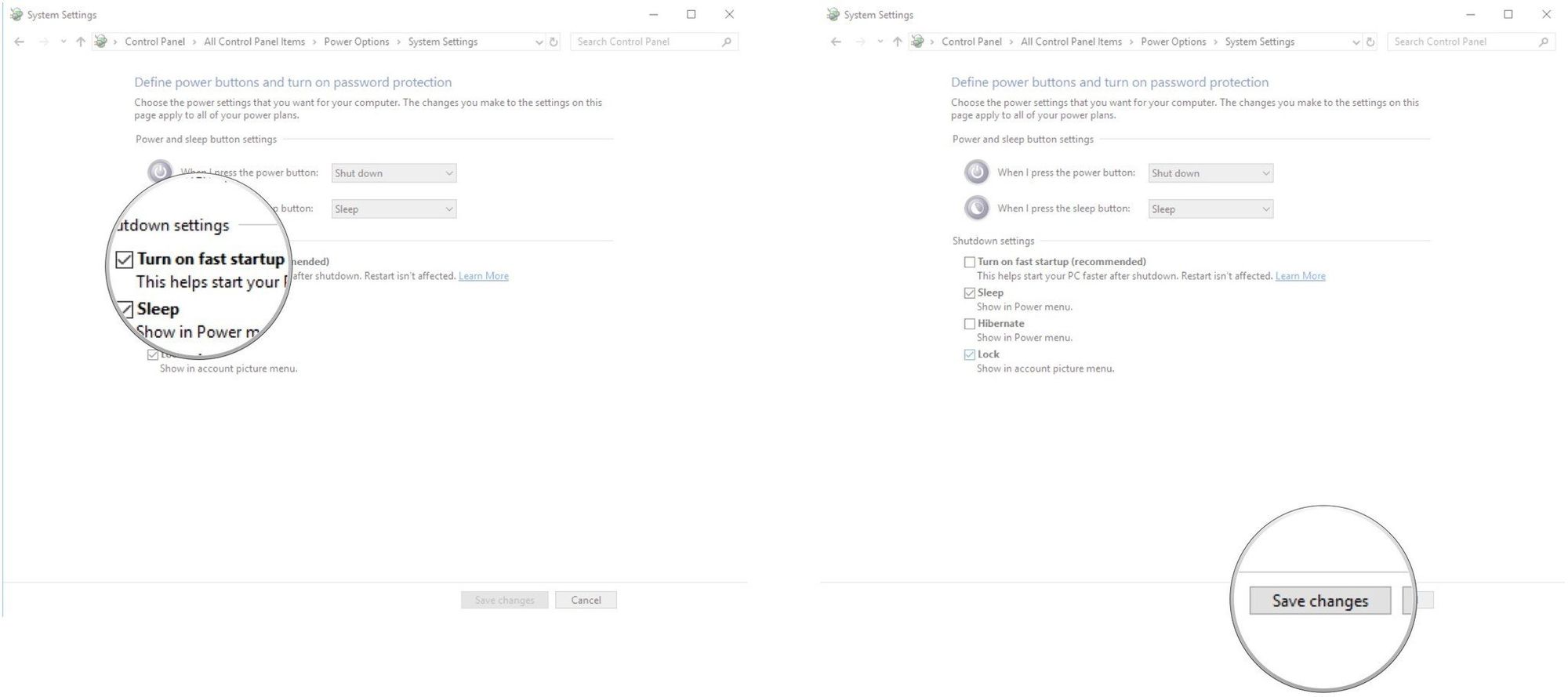
If you want to re-enable fast startup at any point, simply repeat the steps so a checkmark appears next to Turn on fast startup.